This guide will help you craft strong text prompts for creating and editing images with Adobe Firefly and Photoshop’s Generative Fill.
Both use the same underlying idea — a diffusion model trained to create or modify images based on text descriptions — but the way you interact with them differs.
Note that the instructions and concepts used to prompt Firefly can also be used in other chat-to-image interfaces like those provided by Copilot, Gemini and chatGPT. All of those tools required sign-in. You can sign in with your CUNY credentials to Copilot.
🔹 Part 1: One Shot Prompts
Firefly is Adobe’s web-based generative image tool.
In this method, you enter a text prompt, and the system generates full images based on your description.
Prompting in Adobe Firefly
We are going to use Firefly: https://firefly.adobe.com/generate/image
Make sure you’re signed in (CUNYFirst credentials) so you can save outputs and more.
Firefly is Adobe’s web-based generative image tool. Other image generation tools are similar especially in the prompting structure shown below. You can use these lessons in other tools.
How Firefly Understands Prompts
Firefly reads your words as a set of visual instructions: nouns describe subjects, adjectives set style and tone, and context defines relationships.
For example:
“A realistic portrait of a woman wearing headphones, sitting in a recording studio lit by blue and orange neon light.”
If you do not provide enough information, it will not ask you for more information but rather construct the image based on relationships and associations it has stored in its model. So, the less guidance you give the model, the more your image will look like the average of whatever nouns you put in the prompt. The “average” depends on the training data of the model and includes whatever biases or lack of information was present.
To help avoid that and make your images truer to the idea in your head and more unique, follow the prompting structure outlined next.
Prompting Structure
Firefly works best when your prompts include:
- Subject – What’s the main focus? (e.g., a mountain cabin, a city street at night)
- Details – What defines it? (e.g., surrounded by trees, neon reflections, misty atmosphere)
- Style or Medium – How should it look? (e.g., digital painting, cinematic photo, watercolor)
- Lighting and Mood – Optional but adds realism (e.g., golden hour, dramatic shadows, foggy morning)
- Camera or Composition – Optional (e.g., wide shot, macro, aerial view)
Here are two images, one with a less detailed prompt and one with more detail:


Note that the same prompt can give different results in different models and sometimes they use past history (as done above with similar women, doc and positioning). Here is the same prompt (#2) in ChatGPT:

Example Prompts
- “An old lighthouse on a rocky coast, crashing waves and sea spray, dramatic clouds overhead, oil painting, stormy lighting, wide landscape composition.”
- “A digital illustration of a futuristic city skyline at sunset with flying cars and glowing signs.”
Firefly Prompting Tips
- Be specific but concise — aim for clarity, not long sentences.
- Start simple, then add details gradually.
- Use descriptive adjectives (realistic, cinematic, moody, painterly, symmetrical).
- Try style keywords like studio lighting, watercolor, macro lens, low angle.
- Use negative prompts (if available) to exclude things: “without text overlay,” “no people.”
Tip: Think of the prompt as your creative direction to an assistant — clear, visual, and intentional.
Here are 2 examples showing style changes:


🔹 Part 2: Prompting for Photoshop’s Generative Fill
Photoshop’s Generative Fill lets you use prompts to add, replace, or remove content within an image or blank document.
It’s not about generating the entire scene at once — instead, you build it piece by piece.
The Workflow
- Start with a Blank Canvas
- Create a new Photoshop document (e.g., 1000×1000 px).
- Choose a transparent background color.
- Select the Canvas
- Use the Rectangular Marquee Tool to select the whole area.
- Go to the Contextual Task Bar → Generative Fill.
- Generate the Background
- Enter a detailed prompt for your background.
- Example:
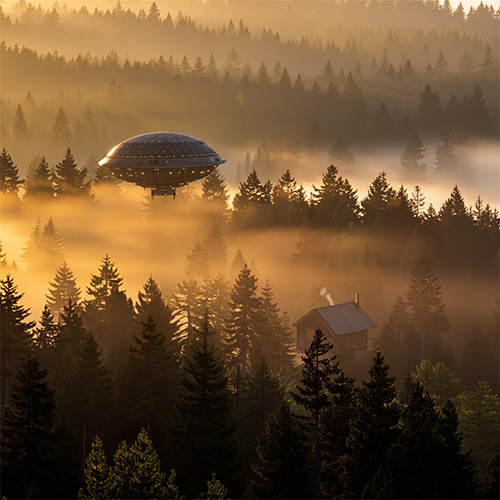
“A misty forest at dawn with golden light filtering through tall pine trees.”
- Click Generate and review the results. Choose one that works best.

- Add New Elements
- Use the Marquee or Lasso tool to create a smaller selection in the area where you want to add an object.
- Go to Generative Fill again and write a prompt for that item.
- Example:
“A wooden cabin sitting in a clearing with smoke rising from the chimney.”

- Photoshop fills the selected area, blending it with your existing background.
- Refine and Build
- Repeat the process for additional elements — a person, a building, an animal, or a vehicle.
- Adjust selections for scale and composition.
- Try variations if something doesn’t blend well.
“an alien space ship hovering and inspecting the ground”

Prompting Tips for Generative Fill
- Describe context, not just objects:
- “A red umbrella on a rainy street with reflections” works better than “umbrella.”
- Think spatially: mention background, foreground, lighting, and distance.
- Use multiple smaller prompts instead of one large prompt.
- Photoshop’s AI blends local selections more effectively than trying to generate everything at once.
- Experiment: run the same prompt multiple times — results will differ each time.
- Avoid clutter: too many objects or unrelated styles in one prompt can confuse the model.
Comparing Firefly and Photoshop
| Feature | Adobe Firefly | Photoshop Generative Fill |
| Purpose | Create entire images from text | Edit or build images piece by piece |
| Best For | Starting from scratch | Adding, replacing, or refining |
| Prompt Style | One complete description | Multiple focused prompts |
| Output Control | Global (whole image) | Local (selected regions) |
| Use Case Example | Generate a cinematic desert landscape. | Add a hiker on the left side of the desert scene. |
🔍 Key Takeaways
- Both Firefly and Photoshop use diffusion models that generate images by gradually removing noise guided by your prompt.
- Firefly is ideal for creating — start with words and make a full image.
- Photoshop is ideal for compositing — use text prompts and selections to build up an image in layers.
- Always review the output critically: consider realism, coherence, and ethical use (licensing, representation, and transparency).
✅ Practice Challenge combining the two
This is optional
- Use a chat-based tool (Firefly, Copilot, Gemini) to generate a full background image.
- remember to save your prompt in the Project Description Document
- Import it into Photoshop and use Selection and Generative Fill to add 2–3 new elements that match your composition.
- Save your .psd in the project folder. Save the exported jpg in the Output files folder.