Padlet is a web-based bulletin board application that makes it easy for you and your students to share text, video, and images in a simple, visually appealing and flexible layout. You can access Padlet directly from Brightspace and create and add Padlet activities to the Content area of your course.
Accessing Padlet through Brightspace
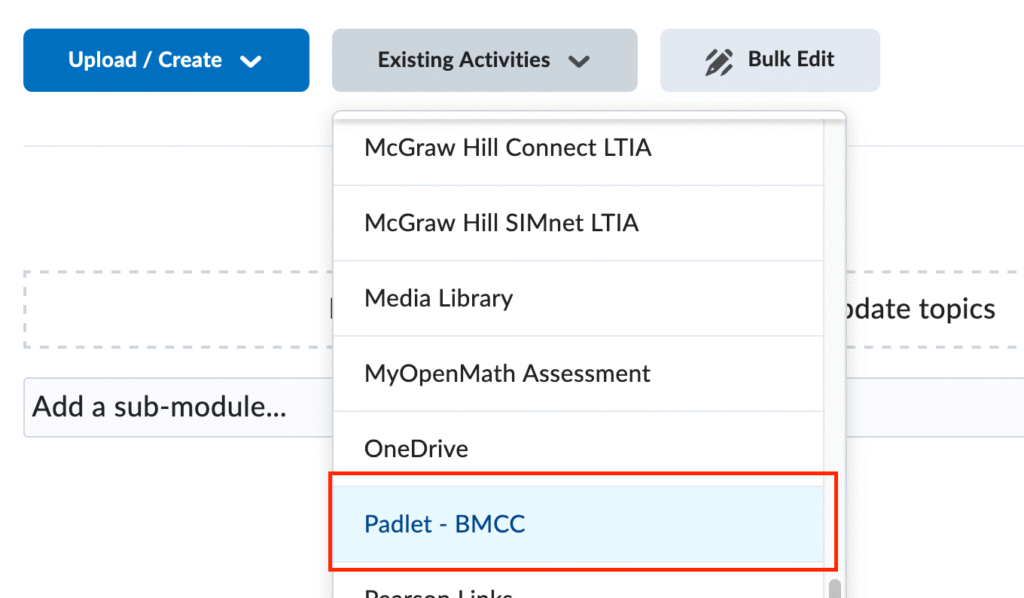
To access Padlet, navigate to Content from the course menu. From the “Existing Activities” drop-down at the top of a module of your choosing (e.g., a module named “Padlet Activities”), select “Padlet – BMCC.”
Make a New Padlet
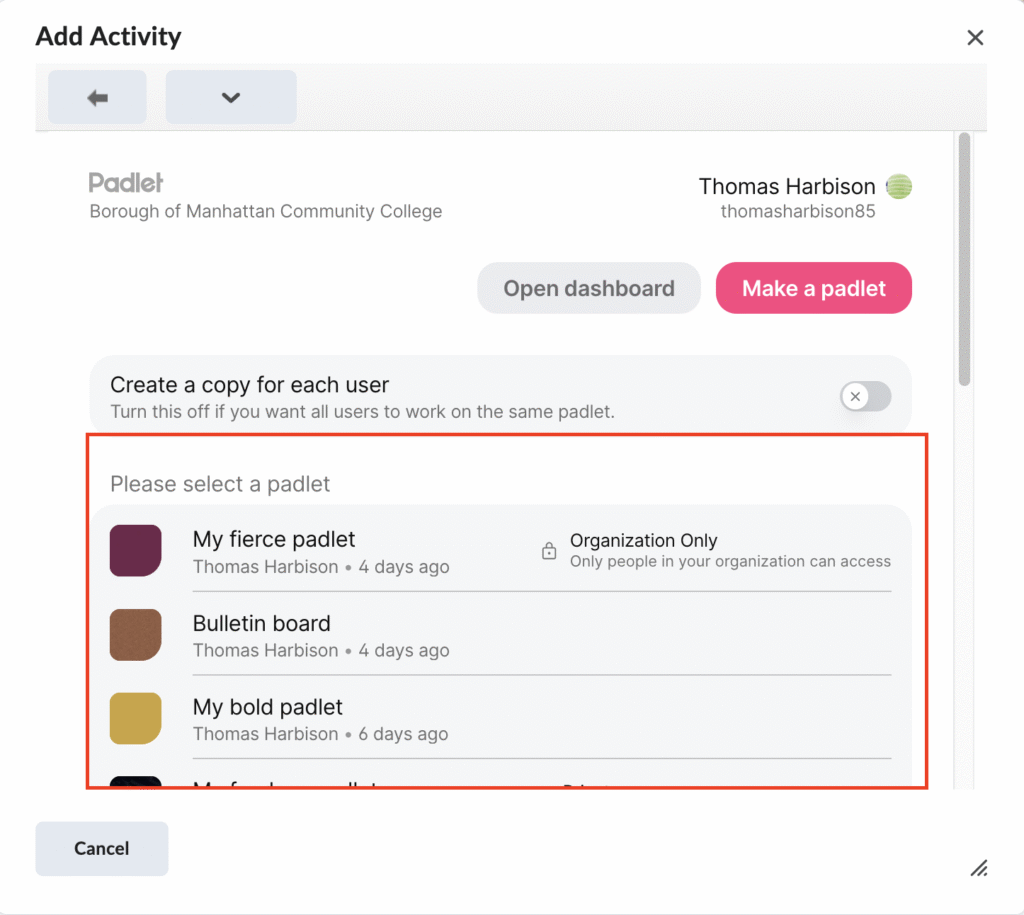
To make a new padlet, which will be needed if you are just getting started, click the “Make a padlet” button in the upper-right corner of the pop-up window. After creating a new padlet, you will need to return to this screen to add a link to the padlet.

Link to Existing Padlet
For either the padlet you just created, or a pre-existing one, you’ll need to select the padlet from the list under “Please select a padlet.”
More Padlet Support
For additional help working with Padlet, we recommend consulting this Padlet help page.
Last modified: