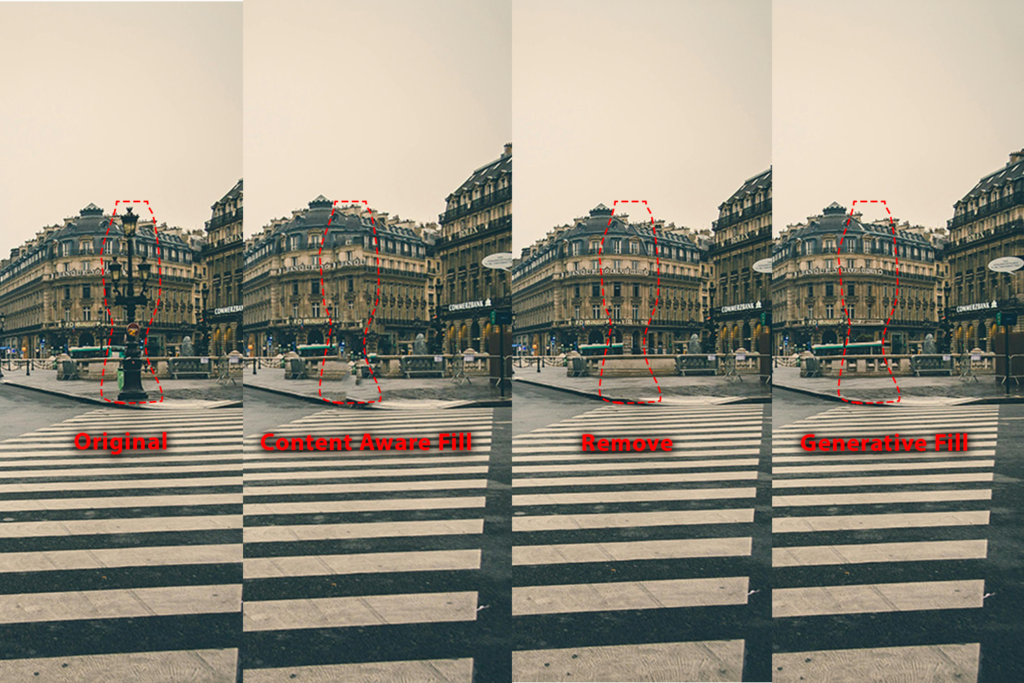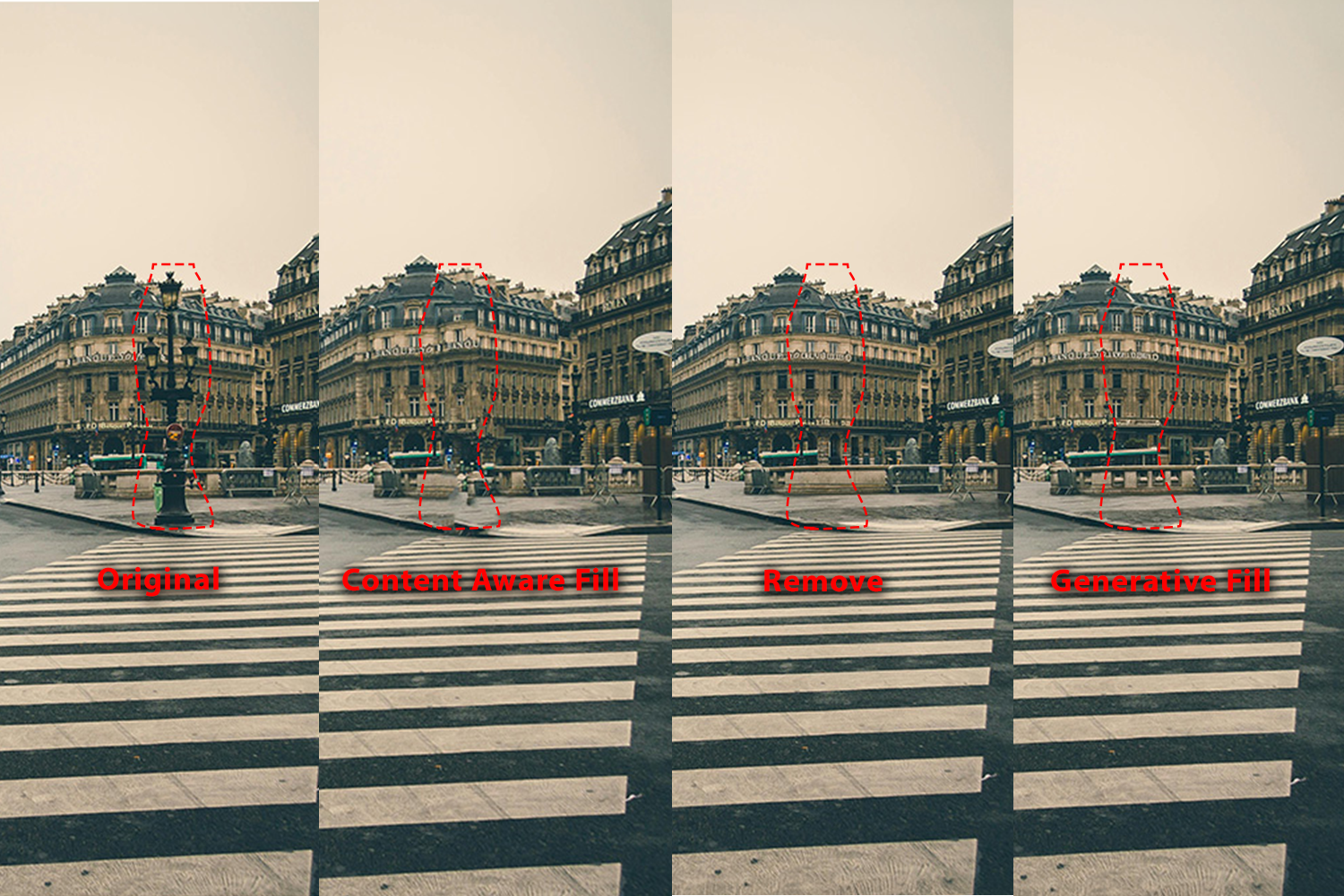
There are a few different tools that allow you to remove objects, items people etc from images. They each have different uses and do or don’t use generative AI.
Removing Objects from Images
- Content-aware Fill. Fill in the space left by removed people or objects with matching pixels. By analyzing the surrounding area, the algorithm can generate a natural-looking result.
- USE: (1)select what you want to remove then (2) Edit > Content Aware Fill
- Try changing the Sampling Area Options and Fill Settings to see what works best for your image
- You can have it output to 1) Current Layer, New Layer, or Duplicate Layer
- NOTES
- good for areas with patterns and textures (grass, clouds, road).
- Not as good for specific objects and images with small irreguar objects and shadows.
- does NOT use generative AI
- try first to reduce your impact from generative AI.
- works well on higher resolution images
- USE: (1)select what you want to remove then (2) Edit > Content Aware Fill
- Remove Tool. This lets you paint over objects to remove them. Generative AI will fill in based on image context.
- USE: (1) Choose the Remove Tool, then (2) brush over the thing you want to remove.
- NOTES
- good for quick touch-ups, removing things like powerlines and small objects.
- Uses generative AI but more to help reconstruction than completely generating.
- Creates new layer with generated pixels
- Generative Fill. You make a selection and then photoshop fills it in. Without a prompt it will take context from other parts of the image. With a prompt it will add what you prompt into the image
- USE: (1) Select what you want to remove, (2) Click Generative Fill from the Quick Selection bar, (3) Do not enter in any prompt and Click Generate.
- NOTES
- Good for extending large parts of the image (we used it to sky and grass to an image), removing large items, extending textures.
- Uses generative AI diffusion models
- Creates new layer
- Gives 3 options (you can generate more)