

The BMCC OpenLab is a free platform where you can create a portfolio web site. OpenLab sites are WordPress sites. This has a couple of advantages: you can export your portfolio from the OpenLab and import it to another web server that has WordPress installed, and because WordPress is used on millions of web sites, you are learning a skill you could use in the future.
This guide shows you how to create a portfolio on the OpenLab using the Media Template.
OpenLab Portfolio Creation Guide
This series of videos walks you through how to create and add work to a portfolio site on the BMCC OpenLab. The videos are broken into individual parts so you can watch just what you need.
Quick Links
Below are all of the links to the instructional videos. After that are more detailed explanations of what is in each video.
- Initial Setup Walkthrough, jump to detailed setup description
- Edit Home Page Text , jump to detailed home page text description
- Edit About Page (photo, text, socials, resume) , jump to detailed about page description
- Edit Site Navigation , jump to detailed site navigation description
- Create Portfolio Post (including adding media and featured image) , jump to detailed create post description
[1] Initial Setup
How to fill out the form to create your portfolio. Before watching the video follow these steps
- Go to the OpenLab: https://openlab.bmcc.cuny.edu/
- Sign in (use your same username and password for the BMCC email – NOT CUNYfirst)
- If you have not yet made an OpenLab Profile, then it will also send you to the profile creation form. Fill this out before going to the next step.
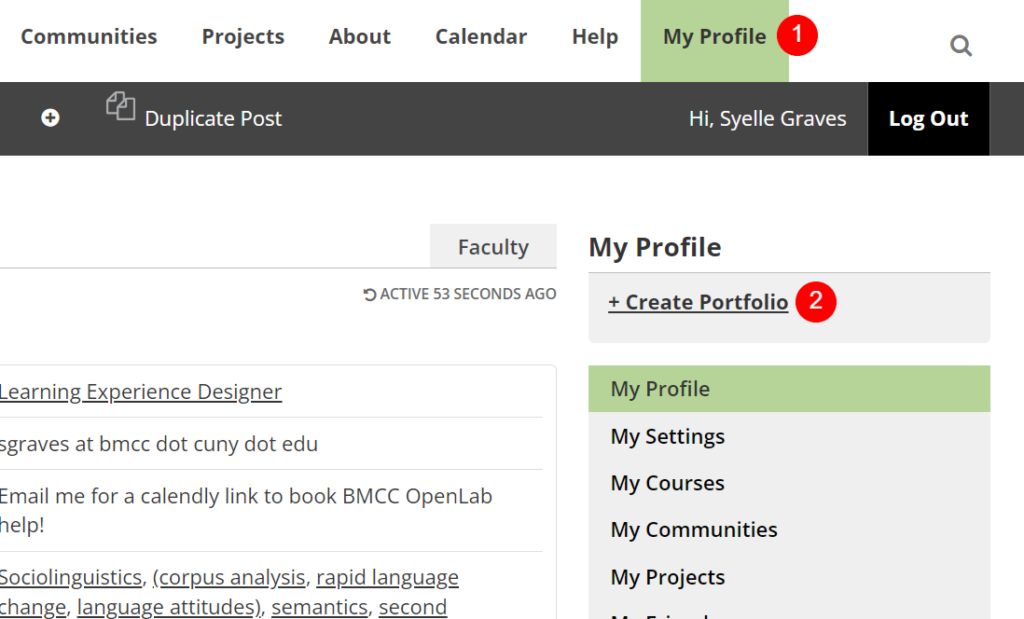
- Click My Profile.
- Click Create Portfolio
Already have a Portfolio on the OpenLab?
If you already have a portfolio on the OpenLab but would like to create a second one with this tutorial, you can also go to Projects and click Create Project and follow along with the same steps below.
Initial Portfolio Setup Video Walkthrough:
View Create Portfolio Setup Video
[2] Replacing the Text on the Home Page
This video shows how to replace the text that reads “Replace this with a brief introductory statement about you” on the home page.
Replace Home Page Text Video Walkthrough:
View Edit Home Page Text Video
[3] Edit About Me Page
This video walks through how to edit the About page. In the video you will see how to:
- Add your image
- Add text about yourself
- Upload your Resume
- Add links to your socials
Edit About Page Video Walkthrough:
[4] Site Navigation
This video shows you how to edit the site navigation. To start, the links for Work and About are not correct. You will need to use this video to correct the navigation. You can also use this if you want to add new pages to the navigation.
Site Navigation Video Walkthrough:
[5] Adding Work to the Portfolio by Making a Post
Your work is the main part of your portfolio and this post will show how to
- Create a post
- Add content to the post
- Categorize the post
- Add a featured image to the post
- Upload and edit media