Hello! As fellow students in the CUNY system, we understand the struggle to move from the classroom to the office. One of the first critical steps in doing so is the resume. Writing a resume to fully reflect who you are to potential employers is a daunting task and can be a very vague process. That’s why BMCC partnered with students like us to present you with a Resume Builder.
Please use the link below to complete a form that will generate a comprehensive resume highlighting your credentials and skills. The document will be ready to add an up-to-date photo of yourself and will also summarize your professional experience and academic qualifications. Although you may have little professional experience, there are other activities and skills that you can present in your resume. They could include part-time jobs, volunteer positions, cultural activities, or whatever relevant experience you may have.
Process Overview
Follow the steps to complete your resume.
Step 1: Launch the Resume Tool
Here you compelete the form. After you complete the form you will get an email with a Microsoft Word document.
The form is long so leave 15–20 minutes to complete it. The Completing the Form section below has more information on the questions the form will ask.
Completing the Form (click to view)
About You:
This page is meant to collect the information that will sit at the top of your resume! It is important for possible employers to know how to contact you. Providing a variety such as your email, phone number, and LinkedIn help employers reach out to you. Make sure to provide your full name, and to follow the examples provided for the proper formatting!
Education:
Employers want to know about your educational background! Share the degree you are currently carrying. As BMCC students, it is possible you don’t have a degree yet. And that is okay! Simply state that your Associate is “in progress”. Tell your employer what your major is, and the school you are attending to attain your major. The trickiest section on this page will be your notable courses taken. It will help employers gauge what you have learned up to this point. That’s why it is important to not use names like “MES152” and instead use the full class name, “Introduction to Contemporary Media”.
This section will require you to add more to the Microsoft Word document rather than on the form. Remember that it needs to be done backwards! Reverse chronological order, meaning we will start with your current job, and you will add in previous educational experiences (high school) below.
Experience:
Employers want to see your journey. Tell them where you used to work and what you did. How long have you had this job? Remember to think of strong keywords for your job summary. Employers love words like “team-player” and “communicative”.
This is another section where you will have to add more to the Microsoft Word document rather than on the form. This resume builder is focusing on the academic side, so you only need two or three previous jobs listed if you carried them. Remember that it needs to be done backwards! Reverse chronological order, meaning we will start with your current job, and you will add in previous jobs below.
Team experience:
Remember how I just mentioned employers loving a team-player? Well, here’s a section where you can back it up. Think back to any group projects you have done during your time at the college. What was the project called? What was it about? And what did you contribute?
Personal Information
In this section you will be able to enter personal information about yourself including honors and awards, talents and interests.
Honors awards and recognition:
This question asks about the recognition you’ve received at the college. Did you earn any scholarships? Were you on the Dean’s list? If you received any sort of honors, it is best to include the year that happened.
Talents:
This is where things get fun. What are your talents? Are you an aspiring writer? A photographer or composer? Are you skilled in the kitchen or play any instruments? This section is for showing your passions. Tell employers about what gets you motivated.
Personal interests:
This goes with your talents. Think bigger though. Are you a human rights activist, or maybe a gamer? Maybe you are a movie junkie, or a fitness fiend.
Side Column:
Everything under this section will appear to the side of the generated resume.
Portfolio:
Having a portfolio is a big deal. It shows employers some of the work that you have been a part of. If you think back to when you were filling out your team experience, this would be a good place to have that project listed. It is also a place to saturate the audience with your art, writing, music, and contact information.
Professional skills
also known as Soft Skills:
Professional skills are skills you can take with you onto the job. Much like time management, communication, being a team player, your editing capabilities, and so on. I recommend not being afraid to be exhaustive in this section. Show employers exactly why they should choose you over anyone else.
Hard skills
These are technical skills, not specific software. Think more of what you can do with the tools: video editing, 2D animation, web design, TV studio production.
Software
This is where you list specific software that you can use. This does not only include Photoshop and Microsoft Tools. Maybe you created a couple of servers on Discord, or you are comfortable using digital marketing tools like HubSpot. Do you know how to use Zoom or PowerPoint professionally? List it. Make sure to also list your level of expertise, for example are you a beginner, intermediate or advanced? If you’ve only learned it in one class or aren’t comfortable in it then you’re a beginner. If you have taken a couple of classes and can get things done then you’re intermediate. This is where most students will be. If you put down expert the people looking at your portfolio will expect you to operate at the same level as one of their current professional employees.
Languages:
If you speak more than one language, this is the time to share that. If you only speak one language, that is okay! You can still list it in the section. However, if you are comfortable with more than one language, you can absolutely share it here!
Step 2: Edit Your Resume
The Word doc you recieve is not complete and needs editing.
- You will need to edit the structure of the document
- And you will need to edit your content in the document.
The sections below have instructions to help with completing the steps.
Once you submit the form, a Word Document will be sent to the email address you entered on the form. Please be advised, when you want to edit your completed resume, we recommend using Microsoft Word to do two things: First, to avoid the omission of any information or errors. Second, this will then allow you save it as a PDF.
As a part of the CUNY community, you have free access to Microsoft Tools through your CUNY Office 365 account to make any edits before saving it as a PDF and sharing it.
Edit Resume Document Instructions
There are a few possible roadblocks in your process.
Changing Your Picture
- One of the roadblocks may be adding your image to the resume. When you open the auto-generated resume in Microsoft Word, you can simply right click on the blank profile image and select the “change picture” and select an image of yourself to input into the slot.

Remove Content Controls
Because your document was created through a form it will have content controls surrounding all of the text added from your form answers. the controls will look like boxes around content like this:

While you can remove them one-by-one, the simplest way to remove all of them at once is to save the file in the older .doc format.
- File > Save As
- Choose Word 97-2004 (.doc) for the File Format
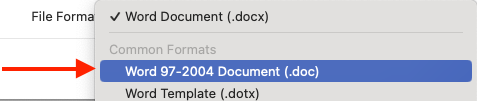
NOTE: after making this change you will not have the new Word functionality like the Change Picture option described above. You can do another Save As to choose the new .docx format: Word Document (.docx). This will give you the new functionality without the content controls.
Talent Section Misplaced
Another possible issue you may encounter is the talent section appearing outside of the right-hand column. Simply copy and paste it into the right hand column and you will be set! Just remember to take a good look at your resume and to make any appropriate revisions to format it better for yourself.
Additional Support
For additional support, contact Alex Vasquez at Alvasquez@bmcc.cuny.edu or the BMCC Writing Center by clicking on the link below:
Edit Resume Content Instructions
Remember that prospective employers may know you are embarking on a career for the first time, so they do not expect a long list of work experience. However, they want to gauge your maturity, motivation and see an informative and error-free resume.
We recommend that you first remove the Content Controls as described above before you get into editing your resume.
Education
The form only allows you to enter one educational institution. You should enter in BMCC. If you have a previous degree from another College, enter that by copying and pasting the existing experience and then changing the information. If you transferred some credits from another college but don’t have a degree, then you do not need to add that. Employers are generally looking for degrees you have completed or are currently enrolled in.
Formal Certifications can also go in the Education section.
Experience
The form only allows you to enter one work experience. If you have more than one work experience, add it by copying and pasting the existing experience and then changing the information.
Team Experience
The form only allows you to enter one team experience. If you have more than one team experience, add it by copying and pasting the existing experience and then changing the information.
Double Check
Go back over all of the sections of the resume to double check that you have your information and spelling correct.